Manage users
Only lead administrators have access to this section, where they can:
- add users
- change a user’s permissions
- deactivate and reactivate users
Video: Managing users
This short video shows you how to add and manage users.
Adding new users
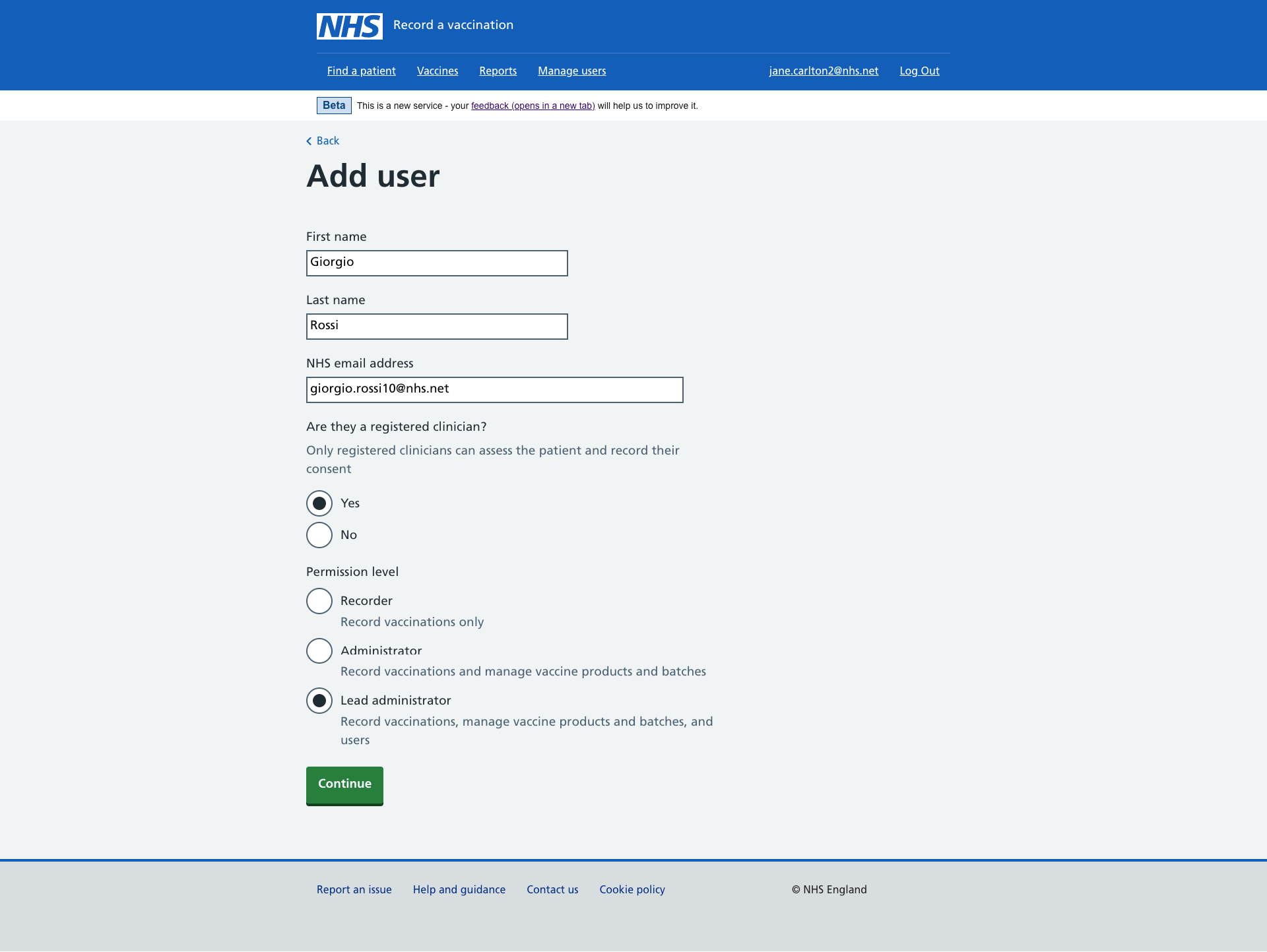
When you add a user, you must enter their:
- first name
- last name
- email address
The email address must either be an nhs.net email or another allowed email address. See examples of allowed email addresses.
If the email address you enter is not allowed, use a different one or contact us to ask if we could allow your preferred email address.
You then need to select:
- if the user is a vaccinator (someone who gives vaccines)
- the permission level you want to give the user
Permission levels
Choose and select a permission level for new users:
| Permission level | Record and edit vaccinations | Add and manage vaccines | Create reports | Add and manage users |
|---|---|---|---|---|
| Recorder | Yes | No | No | No |
| Administrator | Yes | Yes | Yes | No |
| Lead administrator | Yes | Yes | Yes | Yes |
You can have more than 1 user for each permission level.
Creating a RAVS account
Once you have added a new user, we’ll automatically create a RAVS account and send them a welcome email to access the service.
Adding a user to multiple organisations
You can add a user to more than 1 organisation, using the same email address for that user.
The user will then be able to use the same email address to access RAVS at each organisation.
Users can have different permission levels at each organisation.
Changing a user’s permissions or vaccinator status
To change a user’s permission levels or vaccinator status, select Change next to their name.
A change to permission levels becomes active when the user next logs in.
Deactivating users
If a user no longer needs to access RAVS, you must deactivate their account.
Select Change next to their name, and on the next screen you’ll have the option to deactivate the account.
Deactivated users will no longer be able to sign in to RAVS at your organisation.
If you deactivate a user who works at several organisations, they will only be deactivated from your organisation.
Users are automatically deactivated if they have not logged in to RAVS for 90 days.
Reactivating users
To reactivate a deactivated user, select the Reactivate link next to the user you want to reactivate.